To make customer communication easier, you can send and receive text messages with your customers from within the Workshop Module.
The Workshop Module will notify you if you have unread SMS/text messages from your customers, with a link to the relevant job.
You can also send emails to your customers from the Workshop Module.
Have you tried the Message Hub?
If you'd like to view your communications with all your customers from a single screen, including SMS/text replies, you can use the Message Hub, instead of choosing an individual customer to communicate with.
Sending an SMS/text message to a customer
There are three ways to send an SMS/text message to a customer from the Workshop Module.
1) Type a message in the Customer Communications panel
This is the best option if you would like to write a message for your customer related to a specific Workshop Job, and you don't want to use a template.
With the Workshop Job open, click on the Customer Communications button in the top right:

This will open a panel at the side of the screen.
You can type your text message to the customer in the field at the bottom. You can also click the Image icon to attach image files to your message:

Click the green Send icon to send your message:

You will see your sent message appear in the panel. If you send a message from within an open Workshop Job, you will also see the order reference or number on the message:

2) Use a Communication Template
This is the best option if you would like to use one of your SMS/text templates, rather than typing a unique message for the customer.
With the Workshop Job open, click on the Customer Communications button in the top right:
Click on the envelope icon in the bottom left corner of the panel that opens.

This will open the full Customer Communications window. Choose SMS/text message from the Communication type dropdown.
You can now choose a template from the drop-down list:

For more information about creating and using communication templates, please refer to this article: How do I use Communication Templates?
3) Send a message from the notifications button
You can also send a message to a customer after reading a response from the ‘Unread Messages’ button. Please see the section below for more information on this feature.
Linked Order Information
If you send a message to a customer after using the ‘Unread Messages’ button, you will not see the Linked Order information in your sent message. You will only see the Linked Order reference or number if you open a Workshop Job and send the message through the 'Customer Communications' button.
Reading text message replies from your customers
You will be notified in the Workshop Module if you have any unread text messages from your customers. You will see an ‘Unread Messages’ button appear, like so:

Click on this icon, and you will see the names of customers who have sent you an unread response.
Click on the customer you wish to view.
The customer's reply will show in bold text and as ‘Unread’:

Once you have read the message, click on the message body. This will change the text from bold to regular, and mark the message as ‘Read’:

You can mark messages as ‘Unread’ again by clicking on the message body. This is useful if you would like a colleague to read the reply, for example.
Opening orders from the 2-way SMS panel
When viewing the 2-way SMS panel in the Workshop Module, you can open linked orders by clicking on the order reference or order number.


However, you will only be able to open linked Workshop Jobs when viewing the 2-Way SMS from within the Workshop. Similarly, you will only be able to open a linked Layaway or Special Order when viewing the 2-Way SMS from within the Point of Sale.
Sending an email to a customer
To send an email to a customer, right-click on their job (on either the Board or the Calendar) and choose Contact Customer, or open their Workshop Job and click on the Customer Communications button in the top right:
Click on the envelope icon in the bottom left corner of the panel that opens.
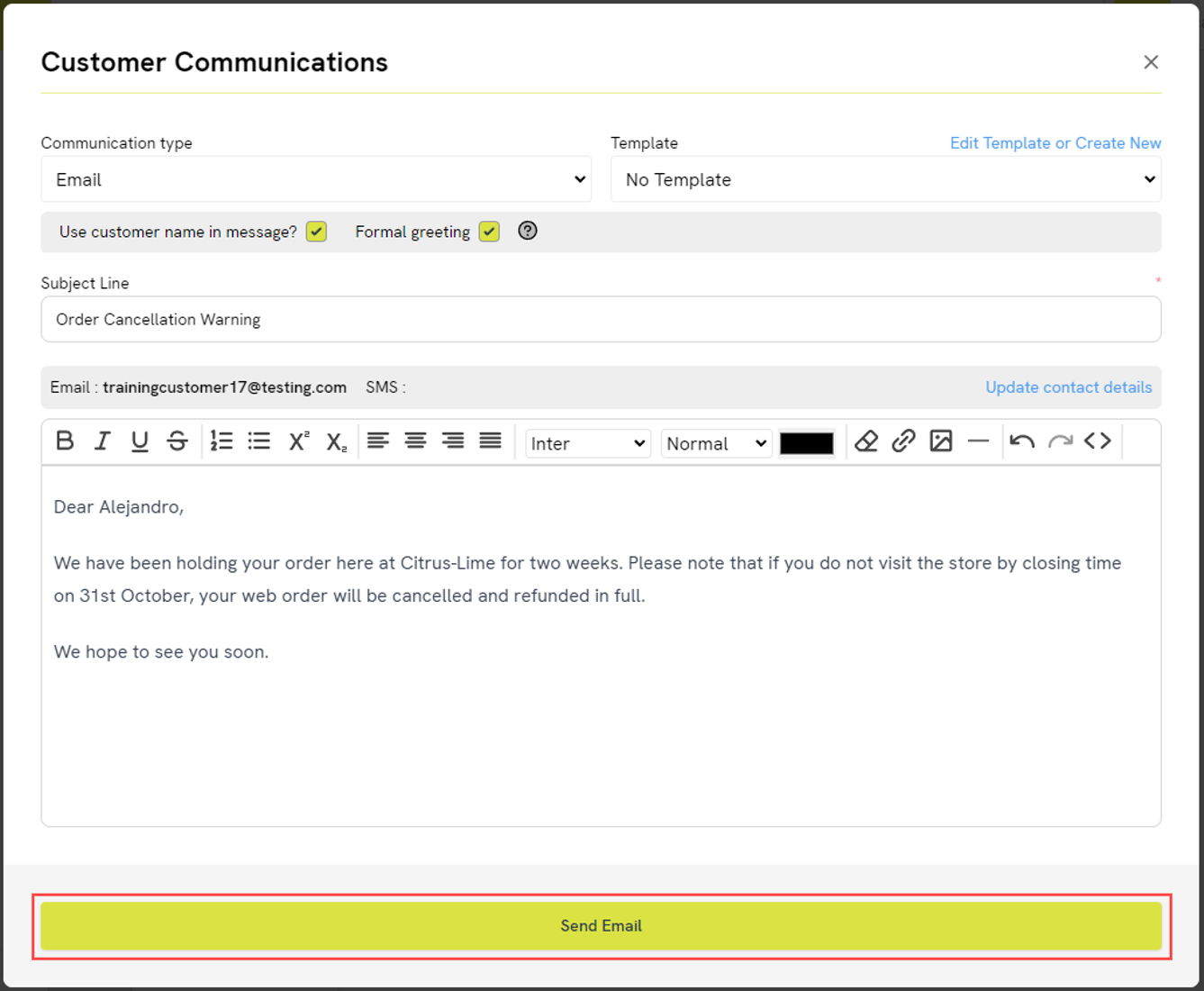
You will see the Communication type has been set as ‘Email’. (You can use this drop-down to change your selection, if needed.) You also have access to your Communication Templates on this screen. Please refer to this article for more guidance on creating and editing templates: Customer Communications Tool // How do I create Communication Templates?
The option to Use customer name in message? will be selected by default — you will see the customer's first name in the message window below. If you do not wish to begin your message in this way, simply untick the box. If you select Formal greeting, the greeting will change to use the customer's title and last name (if a title has been set on their record), or their first name with ‘Dear John’ instead of ‘To John’, for example.
You can enter a Subject Line for your email. If you have chosen a Communication Template, this will be pre-set, but you can make amendments if needed.
Use the message window at the bottom to type your communication. Again, this will be pre-set if you have selected a Communication Template, but you can make amendments if needed.