In Cloud POS, you have the ability to create wizards based on a Purchase Order. This option can be accessed from two areas: within a Purchase Order, or from the Wizards screen.
Creating a wizard from within a Purchase Order
1) From within the purchase order you are working on, click on the Actions button and then click the blue Create a wizard button:

2) This will then open a box that allows you to choose the particular wizard that is relevant to your needs:

3) Once you have selected the type of wizard you require, it will create that kind of wizard with just those products from the purchase order:

Creating a wizard from the Wizards page
1) The second option is available from within the Wizards & Imports option in the Back Office menu:

2) Click on Create Wizard on whichever type of wizard you need. Each of the wizards has an option for Items on a Purchase Order or Transfer.

3) If you click on this option, it will take you to a list of your Purchase Orders and Transfers. You can then tick the box in the left-hand column for the Purchase Order you wish to work on:
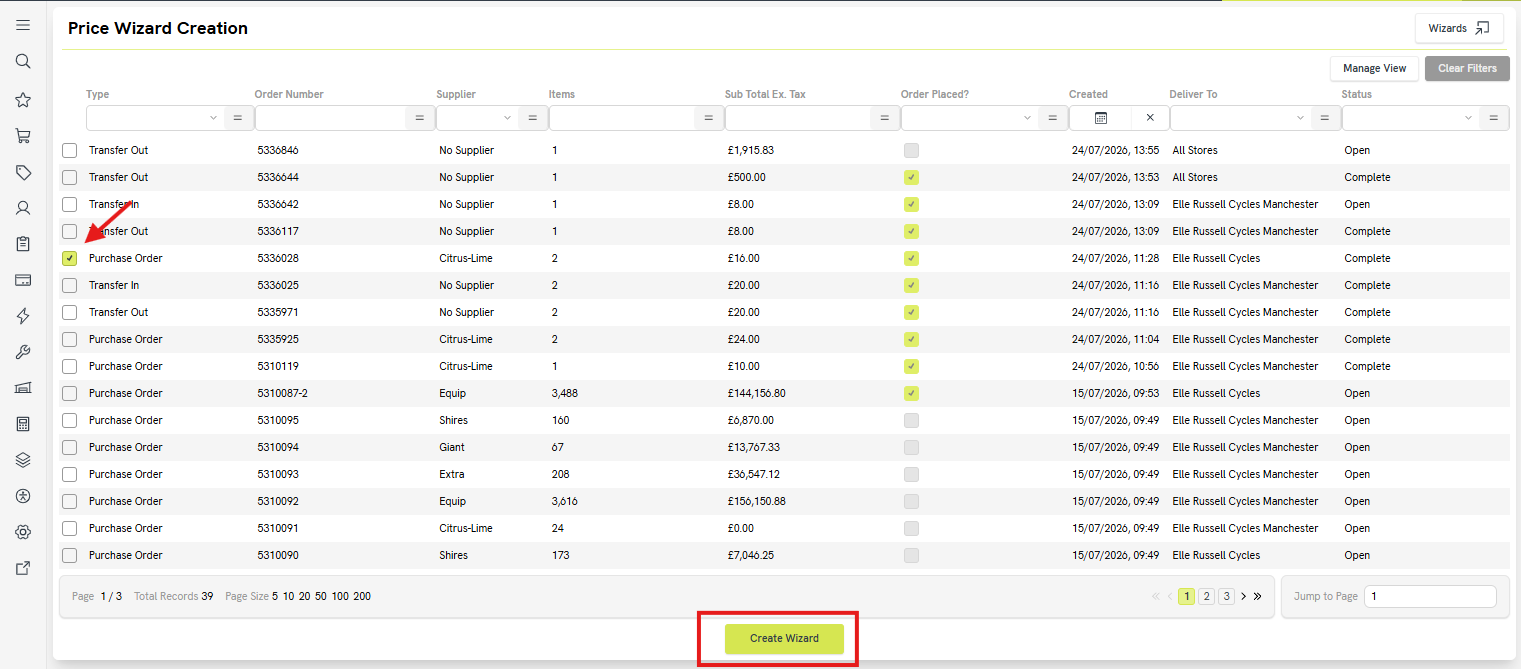
As in the first option this will take you directly into the wizard with the items already populated.
