There are a couple of different ways to cancel customer orders in CloudPOS, depending on whether you'd like to have a full trail of what was ordered before the cancellation, or if you'd just like to cancel the order and put the committed items back into your available inventory.
For Workshop Jobs, there's one extra step that you have to check first – see the Cancelling a Workshop Job section below.
Cancelling a Special Order, Layaway or Quote
1) In the Point of Sale, first recall the order you wish to cancel.
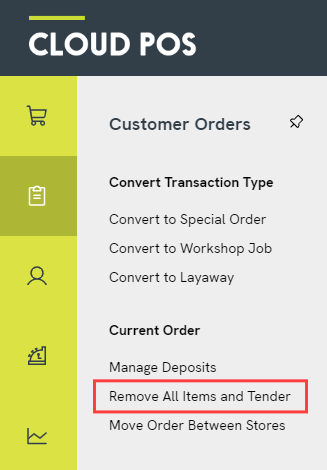
2) Click into the Customer Orders menu.
3) Click Remove All Items and Tender.
4) You will see a dialog box asking you to confirm that you wish to cancel the order. Click Yes to proceed.

5) You will then be offered the receipt options for the cancellation. Click Save Order once you have made your selection.
Finally, you will see the Transaction Summary screen. Your order has now been cancelled.
Returning deposits
If there is a deposit against the order, you can return this to the customer as part of your cancellation process. Just follow the steps here: How do I cancel an order which has a deposit against it?
Cancelling a Workshop Job
If you need to cancel a Workshop Job, you should first check if it's been scheduled in the Workshop Module – if so, you need to unschedule it. To do this, either:
a) hover over the job in the scheduler, and click the green Unschedule button, or
b) open the job details and click the Unschedule button.
Once the job has been unscheduled, you can follow the steps in the section above.
Cancelling Web Orders
You can use the above method to cancel web orders, however this will remove any record you have in the Back Office / Point of Sale that the order was made, and which items were ordered. If you would like to have more of an audit trail, you can use the following alternative method:
1) First, open the Back Office and create a non-inventory item with the ILC CANCELLED and a 0.00 price. Make sure you spell CANCELLED with 2 Ls!

2) Next, recall the order you want to cancel in CloudPOS and add the CANCELLED item to the order – you'll see a little warning telling you that you've added an item to the order, just click on OK.


3) Click on the red Delete icon next to all of the other items on the order. You'll be prompted to refund the customer – follow the instructions onscreen to complete the refund.

Important
If you have a lot of items that need to be refunded, you'll have to recall the order again and click the Delete button to refund each separate item.
4) Recall the order again – it should only have the CANCELLED item remaining. Tick Pick Up on the CANCELLED item, then tender the order through for 0.00.

NOTE: When a web order is tendered through the till, CloudPOS will automatically send out a “Your order has been dispatched” email to the customer. Adding this CANCELLED item prevents the system from sending that email.
5) The order will now be closed. You'll have a clear audit trail of which items were ordered, as well as the fact that the order was cancelled, which you can see from the Customer Orders page and the customer's Purchase History.


